Selected work

01 · Thomson ReutersGenAI · Microsoft 365

Microsoft 365 + CoCounsel

The AI legal assistant I designed, shown live at the Microsoft Build 2024 keynote to 4,000 people in the room and 200,000 watching online

Legal work is scattered. A general counsel learns about a new regulation, then spends days bouncing between email, a document repository, chat threads with outside counsel, and legal research tools — copying context from one place to the next by hand. Every hop costs time, and every manual transfer is a chance for something to get lost. Our bet: stop asking lawyers to come to the AI. Bring the AI to the apps where their day already happens.

I was designing inside someone else's product. Copilot extensions dictate where and how a third party can appear in Microsoft 365, so I worked within Microsoft's Fluent patterns while keeping CoCounsel's identity legible — a user should always know whether an answer came from their own files, from Thomson Reuters content, or both. The second constraint was trust. Attorneys don't act on text they can't check, so every response had to carry visible sourcing, and nothing could execute without a human approving it. And because the first public appearance was a live keynote, the flow had to hold up in front of thousands of people with zero room for error.

As the only designer, I ran the full arc myself: discovery calls with general counsels and outside firms, mapping their current process end to end, low-fidelity flows to align Thomson Reuters and Microsoft stakeholders, then high-fidelity Figma prototypes built on the Fluent kit. I tested with practicing attorneys under NDA, cut anything they hesitated on, and worked shoulder to shoulder with engineers on both companies' teams through keynote rehearsals.

The demo follows Sam, in a busy general counsel's office, on the morning an email arrives from outside firm Marshall & Partners: Canada has banned the import of goods made with child labor, and the company's supply chain is exposed. What used to kick off days of manual coordination across legal, risk, and compliance now runs as a single assisted flow — and the screens below walk through it exactly as it ran on stage.

Source-first answers: Every claim links back to its origin — a clause in the company's contract, a policy line, Thomson Reuters content. Citations sit at the same visual weight as the answer, because for this audience "where did this come from" matters as much as "what." Drafts, never actions: The system proposes; the person disposes. Across all thirteen screens there is not one moment where CoCounsel sends, signs, or publishes on its own. One grammar, five surfaces: Prompt, sourced answer, proposal, approve — the same loop in Outlook, Teams, Word, HighQ, and the browser. Users learn it once and it works everywhere, while each surface still feels native to its host app.

The demo ran live during the Microsoft Build 2024 keynote — one of a handful of partner demos on that stage. The interaction patterns above now extend into CoCounsel Drafting, which entered presale shortly after with a market launch that July, letting customers draft and refine contracts and playbooks without leaving Word.

Designing AI for lawyers is designing for skepticism, and that's a feature. The more legible I made the sourcing and the approval steps, the more willing our test users were to hand the tedious parts over — which is exactly what the product needed them to do.

Screen by screen, as it ran on stage.

01

01. One panel, four verbs

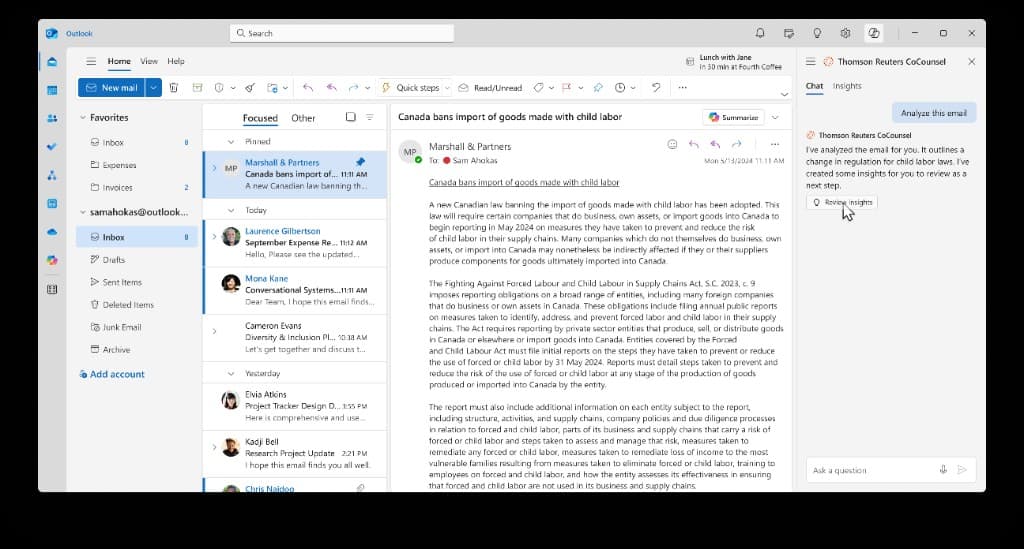
The entry point had to be boring in the best way. Sam reads the regulation email with CoCounsel docked beside it, and the panel offers exactly four verbs. I fought to keep this list short: in testing, anything past five options made attorneys pause to read the menu instead of acting. Typing the analyze request or tapping the first card does the same thing — parity between click and prompt was a rule I held across every surface.
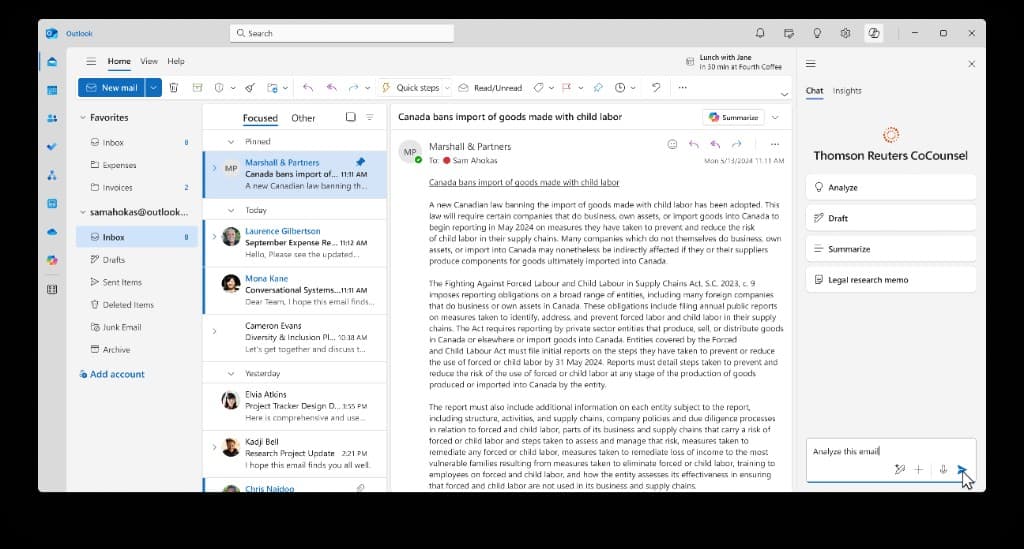
CoCounsel opens as a side panel next to the email. Four quick actions — Analyze, Draft, Summarize, Legal research memo — plus a freeform prompt box.

01

One panel, four verbs

CoCounsel opens as a side panel next to the email. Four quick actions — Analyze, Draft, Summarize, Legal research memo — plus a freeform prompt box.

02

02. A calm first answer

The first response is two sentences and one button. Early prototypes dumped the full analysis into the chat, and test users scrolled straight past it. Splitting the readout ("what this is") from the working material ("what to do about it") kept the panel scannable and gave the person an explicit moment to opt into more.

One click in, CoCounsel reports what the email is about and offers a single review button — no wall of text.

02

A calm first answer

One click in, CoCounsel reports what the email is about and offers a single review button — no wall of text.

03

03. Suggested next steps

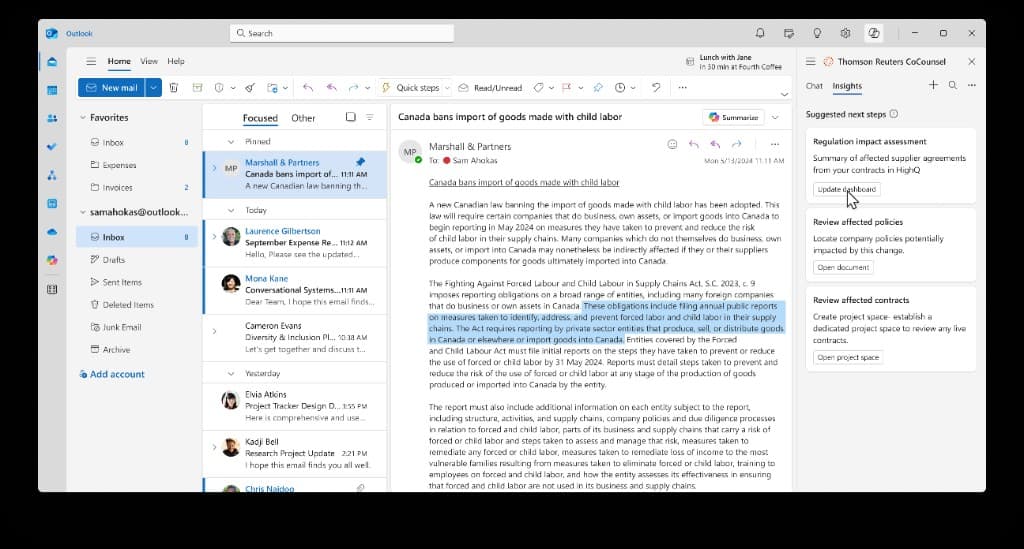
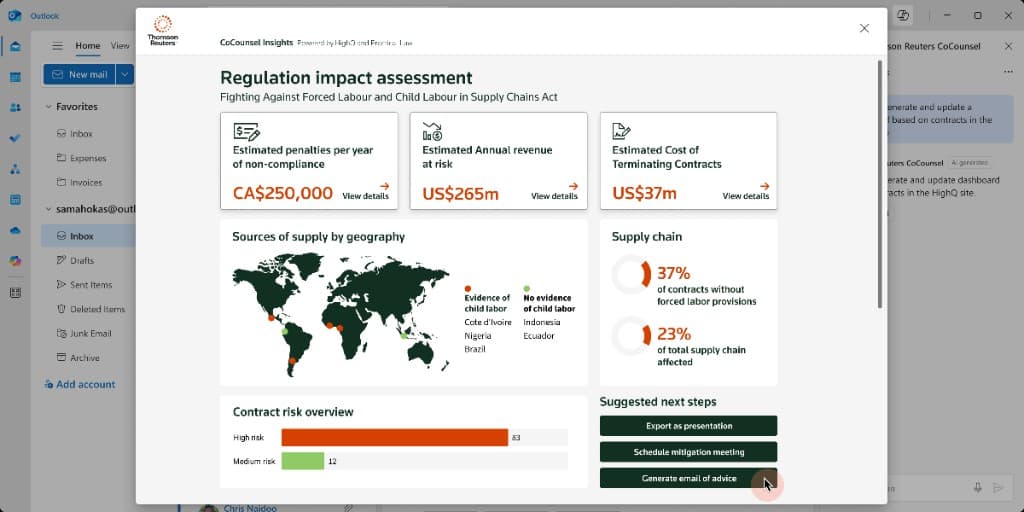
This screen is the heart of the product. CoCounsel has already cross-referenced the regulation against the company's own supplier agreements and policies, and it proposes three concrete moves. Each card names the action, states its source, and offers a single button — update the dashboard, open the document, open the project space. Notice what's absent: no auto-execution. Every card waits for a human.

The panel's second tab holds three cards: a regulation impact assessment from HighQ contract data, affected company policies, and affected live contracts — each with one button that opens the work where it lives.

03

Suggested next steps

The panel's second tab holds three cards: a regulation impact assessment from HighQ contract data, affected company policies, and affected live contracts — each with one button that opens the work where it lives.

04

04. Drafting where the cursor already is

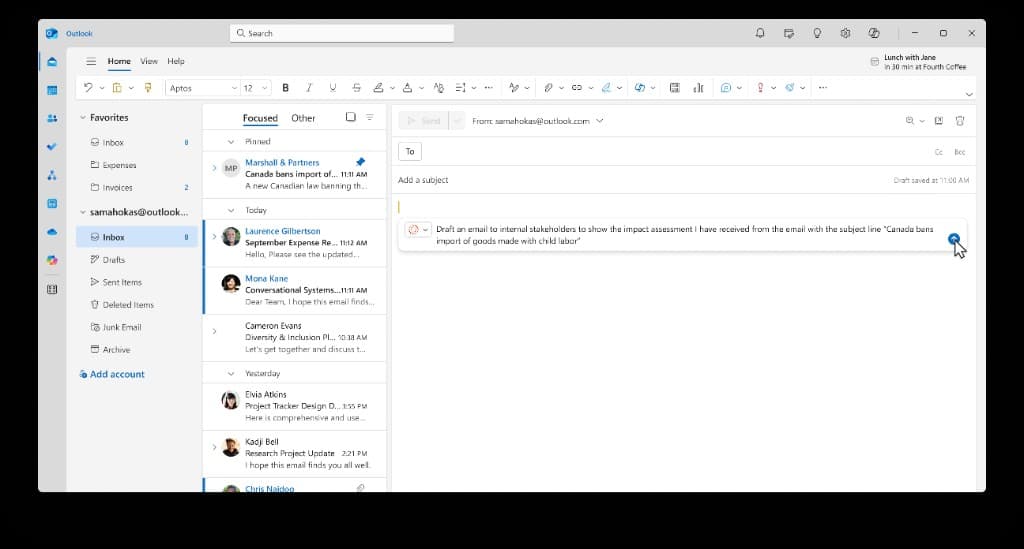
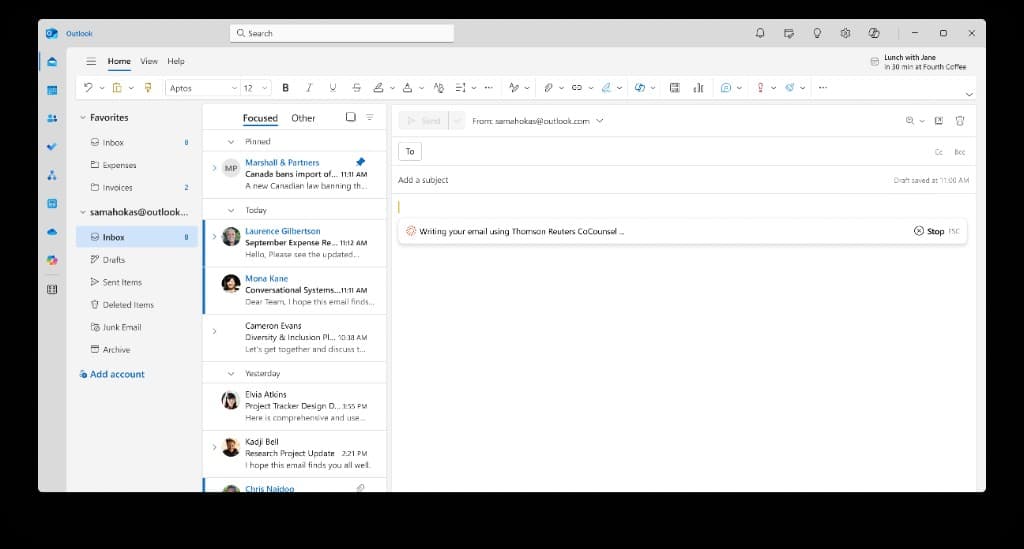
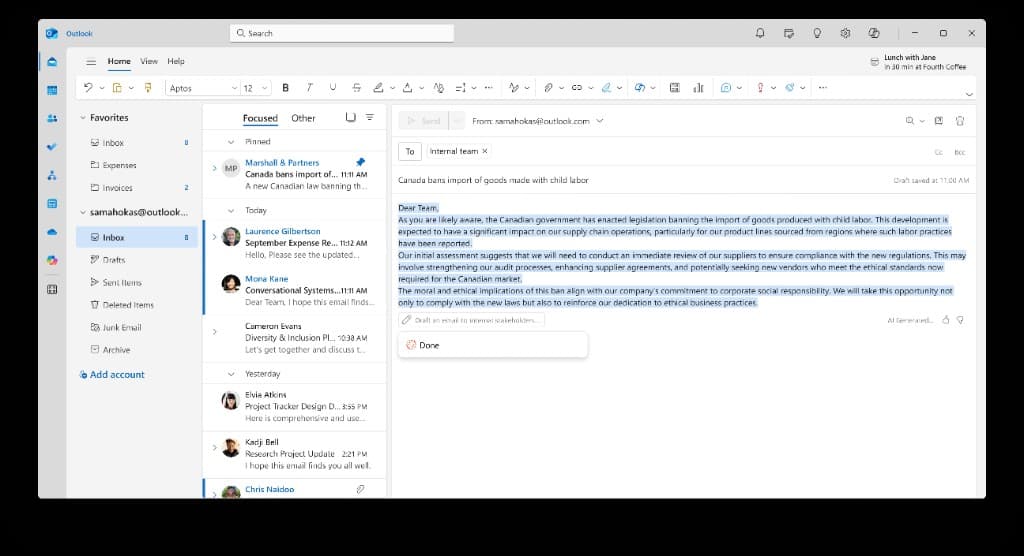
Three small decisions here did outsized work in testing. First, the in-progress state is interruptible — attorneys told us an AI they couldn't stop felt like an AI they couldn't trust. Second, fields fill before body text, matching how lawyers themselves compose. Third, the draft stays visually distinct until the person accepts it: blue marking plus an "AI generated" label, with the originating prompt pinned above so anyone reviewing later can see what was asked.

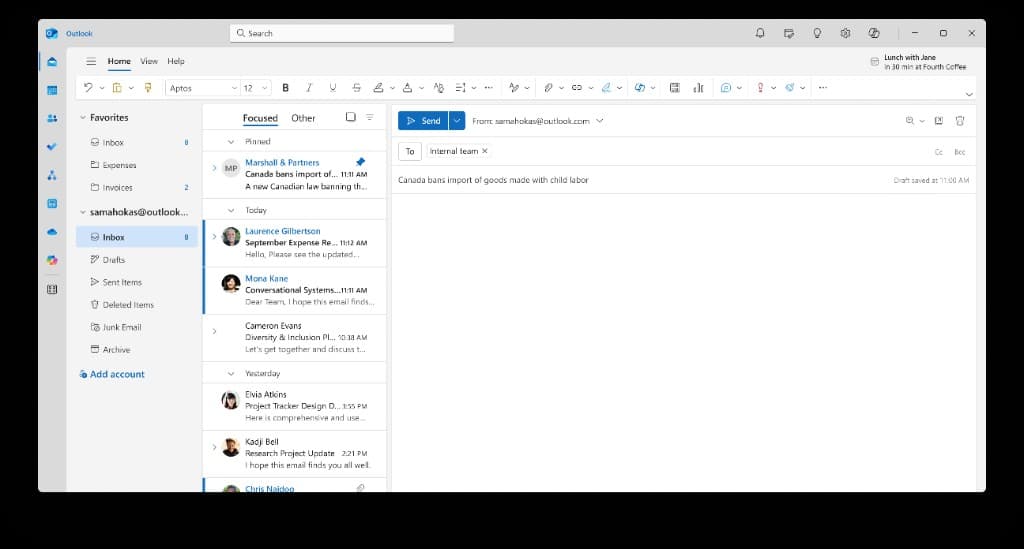
Sam asks for a stakeholder email directly inside a new message — the prompt travels with the compose window, not a separate app.

04

Drafting where the cursor already is

Sam asks for a stakeholder email directly inside a new message — the prompt travels with the compose window, not a separate app.
While CoCounsel writes, a labeled progress state shows what's happening, with Stop and ESC always available.
CoCounsel fills the practical fields first — recipients and subject line — so the person sees the frame before the prose.
The finished draft arrives marked in blue, labeled as AI generated, with thumbs up/down and a visible record of the prompt that produced it.

05

05. Refine, keep, or discard

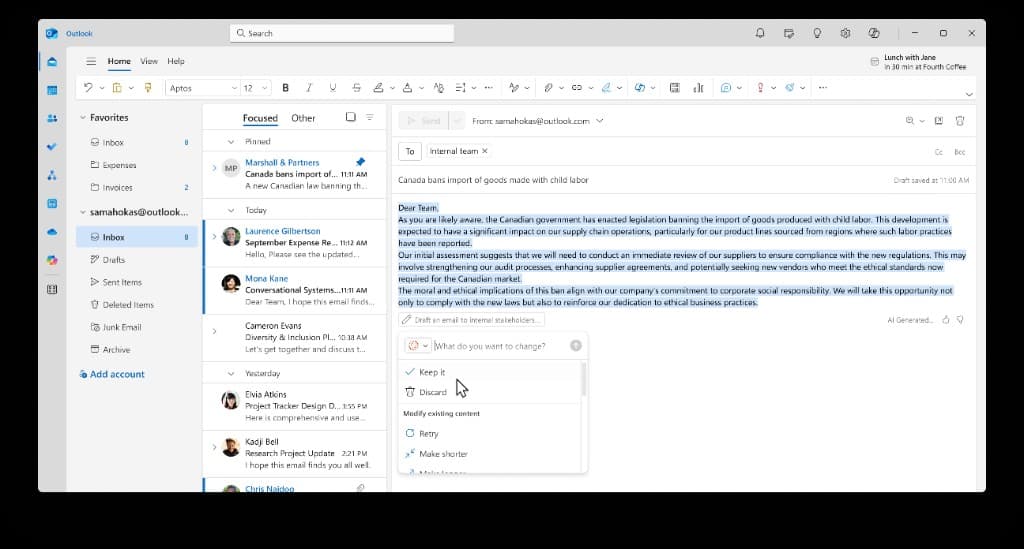
The refinement menu maps to the actual edit moves we observed attorneys making on AI text — mostly length and tone, occasionally a full redo. "Keep it" is a deliberate, separate step: the Send button stays inactive until the person claims the text as their own. That one gate resolved most of the hesitation we saw in early sessions.

A compact menu after generation: Keep it, Discard, Retry, Make shorter, Make longer — or type a custom request.

05

Refine, keep, or discard

A compact menu after generation: Keep it, Discard, Retry, Make shorter, Make longer — or type a custom request.
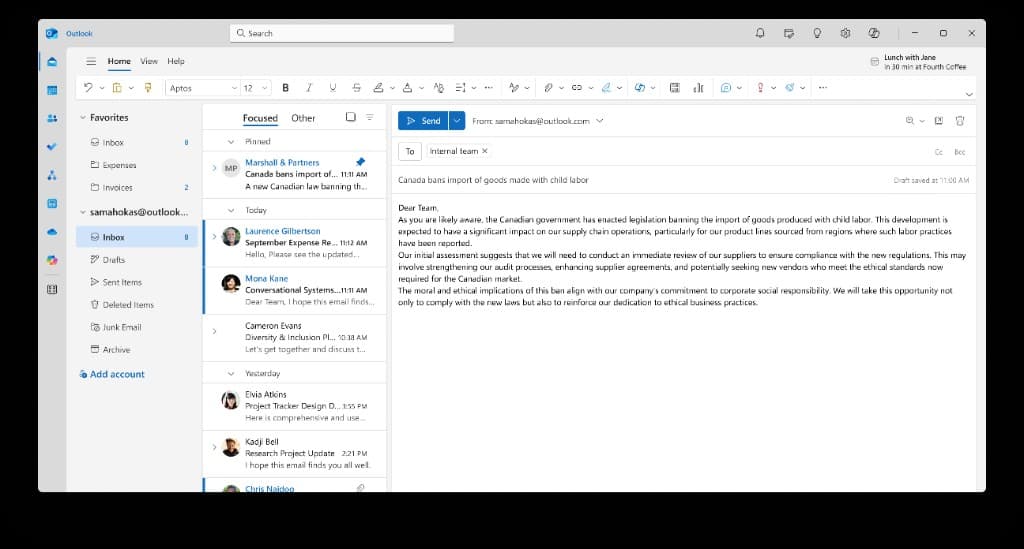
Once kept, the draft becomes plain email text and Send goes live. Nothing sends before that choice.

06

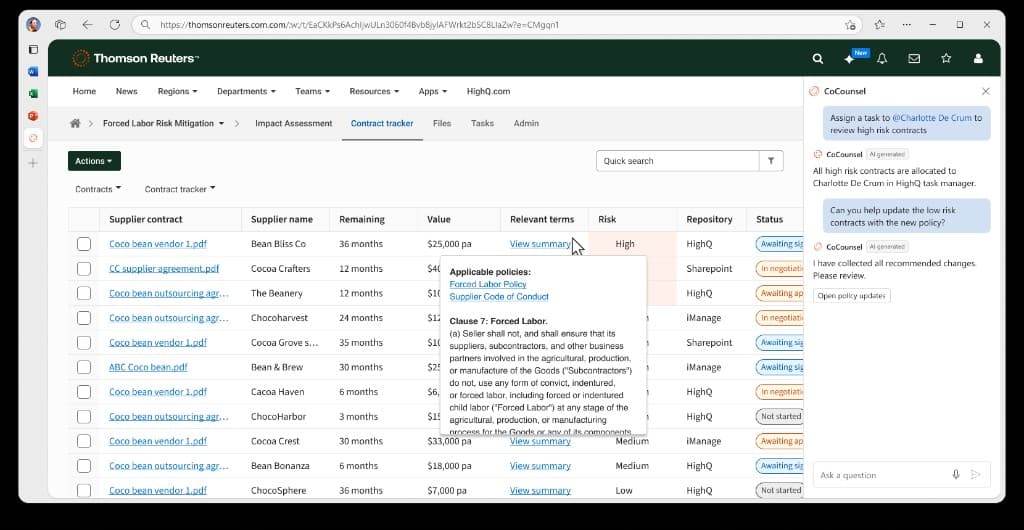
06. Following the work into the browser

The next-step cards from Outlook land here. I carried the identical interaction grammar into the browser: risk-ranked rows, hover for sourcing, one button per action. The chat on the right shows CoCounsel delegating — assigning high-risk contracts to a named colleague in the task manager — while the person keeps final say over the policy updates it gathered.

In HighQ, the same assistant sits beside the contract tracker. Hovering a contract surfaces the applicable policies and the exact clause at issue; the chat assigns review tasks and collects recommended changes.

06

Following the work into the browser

In HighQ, the same assistant sits beside the contract tracker. Hovering a contract surfaces the applicable policies and the exact clause at issue; the chat assigns review tasks and collects recommended changes.

07

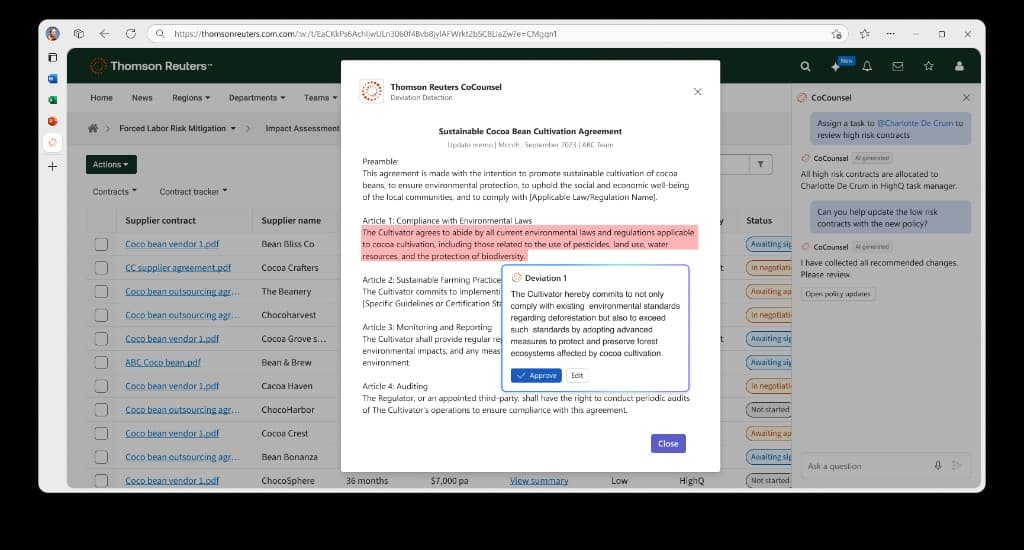
07. Deviation detection

Red marks the clause that no longer complies; the card beside it holds the proposed cure. Putting flag and fix in one view — with Edit given equal footing to Approve — came straight from user sessions: attorneys wanted to amend the proposed language about a third of the time, and burying Edit behind a menu read as the system being pushy.

CoCounsel compares a supplier agreement against the new policy, flags the passage in red, and proposes replacement language — Approve or Edit, side by side.

07

Deviation detection

CoCounsel compares a supplier agreement against the new policy, flags the passage in red, and proposes replacement language — Approve or Edit, side by side.

08

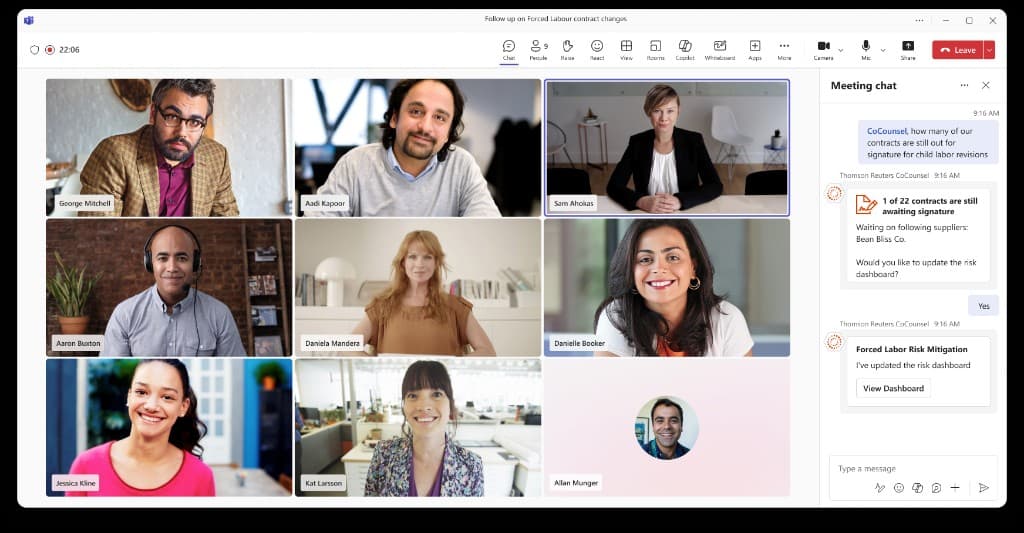
08. Answers in the meeting

Status questions kill meeting momentum; someone always has to go find the number. Here CoCounsel is a participant in the meeting chat, answering from the same contract data with exactly one follow-up attached. The Yes/no reply pattern keeps the exchange as short as a message to a colleague.

Mid-meeting in Teams, anyone can ask CoCounsel where things stand. It answers with a live count — 1 of 22 contracts still awaiting signature — and offers to update the risk dashboard.

08

Answers in the meeting

Mid-meeting in Teams, anyone can ask CoCounsel where things stand. It answers with a live count — 1 of 22 contracts still awaiting signature — and offers to update the risk dashboard.

09

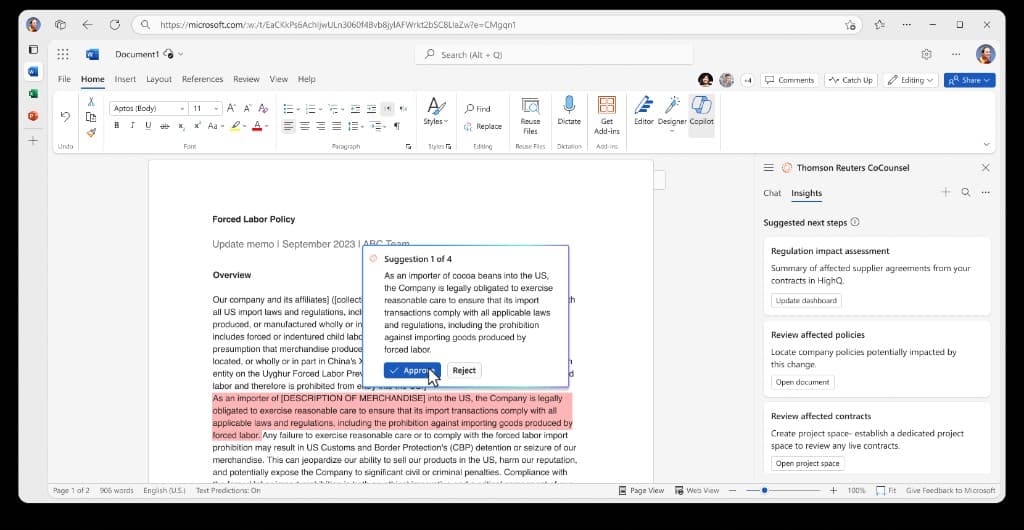
09. Closing the loop in Word

The policy itself gets updated last, and the pattern will look familiar by now: flagged passage, proposed text, two buttons, a running count ("Suggestion 1 of 4") so the person always knows the size of the task. The right-hand panel repeats the same three cards from Outlook — by design. Learn the system once, and it behaves the same in every app.

Back in Word, CoCounsel walks the company's Forced Labor Policy suggestion by suggestion — Approve or Reject per passage — with the same next-step cards in the panel.

09

Closing the loop in Word

Back in Word, CoCounsel walks the company's Forced Labor Policy suggestion by suggestion — Approve or Reject per passage — with the same next-step cards in the panel.
Build '24
live keynote demo
200K
watching the livestream
July
CoCounsel Drafting market launch

Interested in the decisions behind this work?

Let's talk